
Short and quick answer/breakdown: Create a knowledge base in SharePoint by building a dedicated site, creating structured pages for articles, and organizing content with document libraries and metadata. Use SharePoint lists, search, and categories to improve retrieval. Maintain accuracy by assigning content owners and reviewing articles every 90–180 days.
——
Many teams already use SharePoint in some capacity. It often starts as a place to store documents, share files across departments, or manage internal resources inside the Microsoft 365 environment. But once information begins piling up, policies, onboarding guides, and troubleshooting steps, teams usually run into the same question. Can this space be organized into something more structured and easier to search? That is where the idea of a knowledge base comes in. SharePoint can be configured to do more than store files. With the right structure, it can serve as a centralized place for documentation, internal guides, and team knowledge. In this guide, we’re going to guide you on how you can create a SharePoint knowledge base with detailed steps.
Although SharePoint is often associated with intranet portals and document management, it can also be used to build a structured knowledge base. With the right configuration, organizations can organize information, create searchable documentation, and manage knowledge across departments.
What Is a SharePoint Knowledge Base?
A SharePoint knowledge base is a structured collection of internal documentation stored within a SharePoint site. It allows organizations to organize knowledge in one place so employees can quickly find policies, guides, procedures, and other important resources.
Unlike traditional document storage systems, a knowledge base focuses on structured information retrieval. Content is organized using pages, categories, metadata, and navigation so users can easily locate relevant information.
Many organizations choose SharePoint for knowledge management because it integrates directly with Microsoft 365 tools such as Microsoft Teams, Outlook, and OneDrive. This integration enables teams to collaborate on content while maintaining centralized knowledge resources.
A SharePoint knowledge base is commonly used for:
- internal documentation and company policies
- onboarding and employee training materials
- IT support guides and troubleshooting documentation
- HR procedures and compliance information
- operational processes and workflows
When structured correctly, SharePoint can function as a powerful knowledge management system that improves accessibility, collaboration, and information sharing across the organization.
Collaborative vs Structured Knowledge Management in SharePoint
Before building a knowledge base in SharePoint, it is important to understand how SharePoint manages content. The platform supports both collaborative editing and structured knowledge documentation, and balancing these two approaches is essential.
A knowledge base must allow employees to contribute information while also maintaining accuracy, organization, and content control.
Collaborative Knowledge Sharing
One of SharePoint’s biggest strengths is its collaborative capabilities. Team members can create content, edit documentation, and share knowledge across departments.
When used properly, this collaborative environment allows organizations to capture valuable expertise from employees and transform it into documented knowledge.
However, unrestricted editing can turn a knowledge base into a wiki-style system where content changes frequently and becomes difficult to control.
Maintaining Knowledge Base Structure
To maintain a reliable knowledge base, organizations should implement structured content management practices.
Certain types of documentation, such as HR policies, compliance guidelines, or official procedures, should follow stricter approval workflows and editing permissions. This ensures the information remains accurate and authoritative.
Balancing collaboration with controlled content governance allows organizations to build a SharePoint knowledge base that supports teamwork while preserving the integrity of critical information.
Integrating SharePoint with Microsoft Teams
One of the main advantages of using SharePoint for knowledge management is its integration with Microsoft Teams.
When SharePoint is connected with Teams, employees can access knowledge base content directly within their communication workflows. This improves visibility and encourages knowledge sharing across the organization.
For example, organizations can:
- Link knowledge base pages inside Teams channels
- Access SharePoint document libraries during discussions
- Collaborate on documentation while communicating in real time
- Share knowledge resources directly in conversations
This integration helps transform the knowledge base from a static documentation system into a dynamic collaboration hub where teams can access and contribute knowledge more efficiently.
How to Create a SharePoint Knowledge Base (Step-by-Step)
Creating a SharePoint knowledge base requires more than simply storing documents. A well-structured knowledge base should make it easy for employees to find information quickly while maintaining content accuracy and organization.
Follow the steps below to create a knowledge base in SharePoint that is structured, searchable, and easy to maintain.
Step 1: Create a New SharePoint Site
The first step in building a SharePoint knowledge base is creating a new SharePoint site where your documentation will be stored and organized.
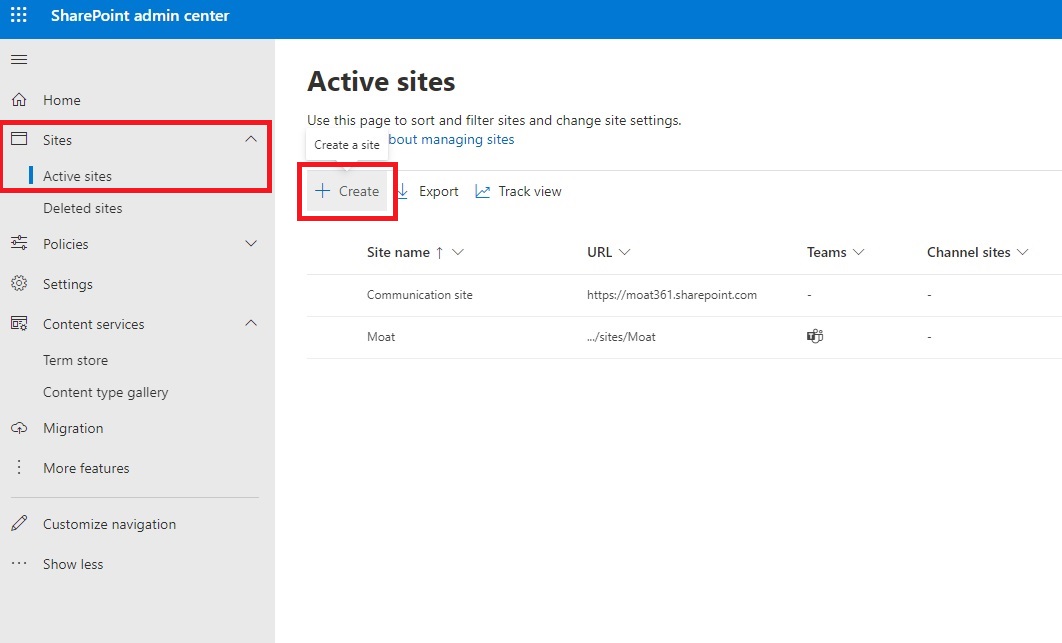
When creating a site, SharePoint allows you to choose between two main site types:
- Team Site
- Communication Site
Selecting the right type depends on how your organization plans to manage and share knowledge.

Team Site
A Team Site works best for collaborative environments where employees frequently contribute content, edit documents, and share knowledge within specific teams or departments.
Team sites are ideal when your knowledge base will include:
- project documentation
- team collaboration resources
- internal working documents
- frequently updated knowledge content
Because team sites allow active collaboration, they function similarly to a wiki-style knowledge base.
Communication Site
A Communication Site is more suitable for a traditional knowledge base where information is shared broadly but editing permissions are limited.
Communication sites work well for:
- HR policies
- company procedures
- training documentation
- organization-wide knowledge resources
These sites focus on structured information distribution rather than frequent collaborative editing.
For many organizations, building a SharePoint knowledge base, a communication site is often the best starting point because it maintains content control while still allowing collaboration when needed.
Step 2: Organize and Structure Your Knowledge Base Content
After creating your SharePoint site, the next step is to structure the information in your knowledge base.
A clear content structure helps employees navigate the knowledge base and find information quickly.

Start by creating a logical content hierarchy based on how your organization uses information.
Common knowledge base categories may include:
- Human Resources
- IT Support
- Customer Support
- Policies and Procedures
- Training Materials
Each category should serve as a central hub for related documentation.

Within each main category, create subcategories that focus on specific topics. This layered structure prevents information overload and makes navigation easier.
For example:
- Customer Support
- Troubleshooting Guides
- Product Documentation
- FAQs
- Support Procedures
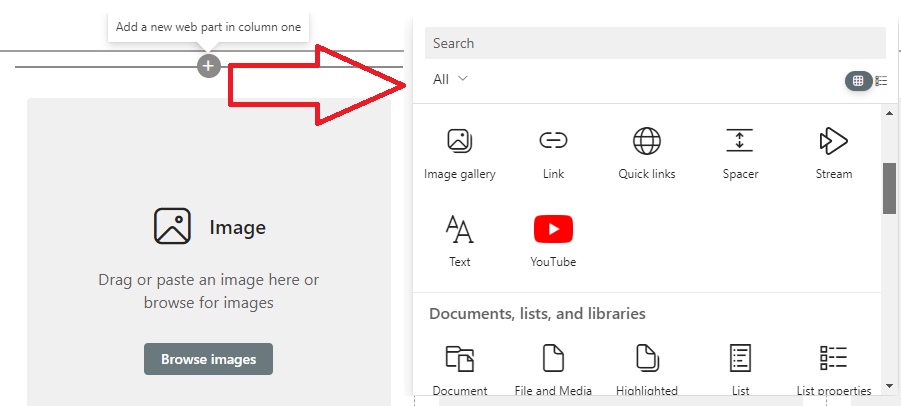
Creating well-defined categories improves the usability and scalability of your SharePoint knowledge base.
Step 3: Use Metadata and Tagging for Better Organization
Metadata plays a crucial role in organizing content within a SharePoint knowledge base.
Metadata allows you to categorize documents and pages based on attributes such as:
- document type
- department
- author
- topic
- audience
Instead of manually searching through folders, users can filter and locate information using metadata tags.

SharePoint also supports managed metadata, which allows administrators to create standardized terms and taxonomies across the entire knowledge base.
Managed metadata offers several advantages:
- consistent document categorization
- improved search functionality
- easier content discovery
- automated updates when metadata terms change
For example, documents could be categorized using metadata such as:
Document Type
- Training Guide
- Process Documentation
- Policy Document
Department
- HR
- Finance
- IT
Using metadata effectively helps transform SharePoint from a simple document repository into a powerful knowledge management system.
Additional resources on metadata from Microsoft:
Step 4: Configure Navigation and Search
Navigation is one of the most important elements of a successful knowledge base. Even well-organized content becomes difficult to use if users cannot easily navigate through the information.
To improve navigation within your SharePoint knowledge base, you should configure:
- Top navigation menus
- Quick links for common resources
- Breadcrumbs to track page hierarchy
- Category pages for major knowledge areas
Clear navigation ensures that employees can move through the knowledge base without needing to search repeatedly for information.
Search functionality is equally important. A strong search experience allows users to quickly locate documentation without navigating through multiple folders or pages.
Using metadata, structured page titles, and consistent categorization improves SharePoint’s built-in search capabilities.
Step 5: Set Permissions and Access Controls
Security and content governance are essential for maintaining a reliable knowledge base. SharePoint allows administrators to control who can view, edit, or manage content within the knowledge base.
Permission management helps organizations protect sensitive information while still allowing employees to access the resources they need.
Common permission levels include:
- View access for employees who only need to read documentation
- Edit access for subject matter experts who maintain content
- Admin access for knowledge base managers
Establishing clear permission structures ensures that important documentation remains accurate and secure.
Step 6: Maintain and Update Knowledge Base Content
A knowledge base is only valuable if the information remains accurate and up to date.
Organizations should create a regular process for reviewing and updating content in their SharePoint knowledge base.
Maintenance tasks may include:
- Updating outdated documentation
- Removing duplicate content
- Adding new knowledge articles
- Reviewing policy changes
Regular updates ensure that employees trust the knowledge base as a reliable information source.
Step 7: Gather User Feedback and Improve Continuously
The final step in building a successful SharePoint knowledge base is collecting feedback from users.
Employees who regularly use the knowledge base can provide valuable insights about:
- missing documentation
- unclear content
- navigation challenges
- search difficulties
Creating feedback channels allows organizations to continuously improve their knowledge base and ensure it meets the needs of employees.
Over time, this feedback helps transform the SharePoint knowledge base into a dynamic system that evolves with the organization.
Why You May Want to Consider a Dedicated Knowledge Base Provider
While SharePoint is a robust platform for intranet and collaborative projects, when it comes to building a knowledge base, its capabilities might not align perfectly with your needs. Here's why considering a dedicated knowledge base provider as an alternative to SharePoint can be a game-changer:
- Specialized Functionality: Unlike platforms designed for broader uses, a dedicated knowledge base provider focuses solely on creating an optimized environment for storing and retrieving knowledge. This specialization translates to more refined features and a user experience tailored specifically for knowledge management.
- Advanced Search Capabilities: The backbone of any knowledge base is its search functionality. Dedicated providers often offer advanced search technologies, incorporating machine learning and AI, to ensure users find exactly what they need, when they need it.
- Ease of Customization: While platforms like SharePoint offer customization, they might require extensive configuration or even coding knowledge. Dedicated knowledge base solutions typically provide more straightforward customization options, making it easier to tailor the platform to your exact specifications.
- Scalability and Support: As your business grows, so does your need for a scalable knowledge management solution. Dedicated providers usually offer more scalable options and specialized support tailored to the unique challenges of knowledge management.
Why Choose Helpjuice as Your Knowledge Base Solution
Helpjuice is a dedicated knowledge base platform designed to help organizations manage, organize, and share information more effectively.
Unlike general collaboration tools, Helpjuice focuses entirely on knowledge management, providing powerful features that make it easier to create, maintain, and scale your knowledge base.
Below are several reasons why organizations choose Helpjuice as their knowledge base solution.
- Unlimited Customization: Helpjuice offers unparalleled customization capabilities. Whether it’s branding, layout, or functionality, you can tailor every aspect of your knowledge base to align seamlessly with your business's identity and needs.
- Machine Learning-Enhanced Search: With Helpjuice, your search capabilities are not just efficient; they're intelligent. Leveraging machine learning, Helpjuice’s search function understands and adapts to user behaviors, providing more relevant and accurate results.
- User-Friendly Design: Simplicity is at the heart of Helpjuice’s design philosophy. The platform is intuitive, requiring minimal training, which means your team can start leveraging its benefits from day one.
- Comprehensive Support and Scalability: Helpjuice is not just a tool; it’s a partner in your growth. With comprehensive support and scalable solutions, it adapts to your evolving needs, ensuring that your knowledge base is always a step ahead.
While there's no doubt that SharePoint has its strengths, the specialized capabilities of a dedicated knowledge base like Helpjuice can transform the way your organization manages and leverages its collective knowledge. By choosing Helpjuice, you’re not just choosing a platform; you’re embracing a future where knowledge is a dynamic, empowering force driving your business forward.
Case Study: Bay Property Management Group's Experience with Helpjuice
Now, let’s dive into a real-life scenario that brings home everything we’ve discussed. Meet Oscar Martinez, an IT Admin at Bay Property Management Group, who shares his transformative experience with Helpjuice.
The Challenge:
Bay Property Management Group was on a quest for efficiency. "Our main goal was to reduce the live support time we spent on employee issues," Oscar explains. They needed a centralized knowledge base for different departments to collaborate and share information seamlessly.
The Journey:
Initially, they tried SharePoint, part of their O365 enterprise subscription, but found it "way too cumbersome." A trial with Document360 also didn’t hit the mark due to usability issues and slow customer support response times.
The Helpjuice Solution:
Then came Helpjuice. "What really won us over was its ease of use and simplicity," says Oscar. The platform's intuitive design meant that even non-techies could collaborate effortlessly. But it wasn’t just the user-friendliness that impressed them; the knowledge base metrics and analytics provided invaluable insights for continuous improvement.
The Game-Changer:
Oscar highlights the powerful AI and search features of Helpjuice: "It makes searching for help a breeze for our employees." The drag-and-drop functionality for content and the detailed analytics helped them pinpoint and address content gaps.
The Impact:
The results? Staggering. "After rolling out the KB, ticket submission to our IT department dropped by nearly 55% within the first two weeks!" Oscar reveals. This dramatic decrease in support tickets allowed the IT team to focus on other critical tasks. Additionally, a 40% increase in employee productivity was observed, thanks to efficient information retrieval.
“The fantastic customer support from Helpjuice was the icing on the cake,” Oscar adds with enthusiasm.
Your Turn to Experience the Transformation:
Inspired by Bay Property Management Group’s story? Imagine what Helpjuice can do for your organization. With its unrivaled ease of use, powerful search capabilities, and exceptional customer support, it's not just a knowledge base; it's a catalyst for efficiency and productivity.
Why wait? Start your journey today with a 14-day free trial of Helpjuice and experience the difference firsthand.
Wrap Up
Creating a SharePoint knowledge base can help organizations centralize documentation and improve collaboration across teams. When structured properly, SharePoint can serve as a useful platform for storing policies, guides, and internal resources.
However, organizations should carefully consider whether SharePoint fully meets their knowledge management needs. While it offers strong collaboration features, dedicated knowledge base platforms often provide more specialized tools designed specifically for organizing and retrieving knowledge.
Ultimately, the right solution depends on your organization’s goals, workflows, and scale.
Whether you build your knowledge base in SharePoint or choose a dedicated platform like Helpjuice, the objective remains the same: ensuring that knowledge is accessible, organized, and easy for your team to use.
Effective knowledge management empowers employees, improves productivity, and allows organizations to make better decisions based on reliable information.





.png)
